
Before you begin
SillyTavern Manager installs and runs SillyTavern for you. It is not SillyTavern, and it is not made by the people who make SillyTavern — it clones their public repository onto your machine, at your request, and manages what it finds there.
You will need: a machine you control, about 2 GB of free disk for SillyTavern and its dependencies, and an internet connection for the first install. Everything after that can run offline except the model providers SillyTavern talks to.
| Platform | What you need | Where to start |
|---|---|---|
| Windows 10 or 11 | Nothing. Node.js is inside the download. | Windows |
| Android 7+ | Termux from F-Droid | Termux |
| macOS 13+ | Homebrew and Node.js 22+ | macOS |
| Linux or a VPS | Node.js 22+ and git | Linux |
| Any Docker host | Docker, and a volume for /data |
Docker |
| Anything with Node 22+ | npm 11+ | npm |
The manager and SillyTavern use three ports: 7860 for the panel, 8000 for SillyTavern and 8001 for the access gateway. If something else on the machine already holds one of them, see Troubleshooting.
Installing
Six ways in, all ending at the same place: a panel on port 7860 asking you to choose an administrator password.
#Windows — download and run
- Open the latest release.
- Download
SillyTavernManager-windows-x64-vX.Y.Z.zipand the.sha256file beside it. - Extract the ZIP into a normal folder, such as
Downloads\SillyTavernManager. Do not run it from inside the ZIP. - Double-click
SillyTavernManager.exe. - The browser should open by itself. If it does not, go to
http://127.0.0.1:7860.
A console window opens and stays open. That window is the manager: it prints the address, where your data is kept, and what the manager and SillyTavern are doing. Closing it stops everything cleanly — SillyTavern and the Cloudflare tunnel go down with it, so no port is left held and there is nothing to hunt for in Task Manager.
Press Q or Ctrl+C in that window to stop, and O to open the panel in your browser again.
The application folder and the data folder are separate. Your data lives in %LOCALAPPDATA%\SillyTavernManager, so replacing the ZIP with a newer one never touches profiles, backups or settings.
If SmartScreen warns about an unsigned application, that is expected: release builds are not code-signed. Check the .sha256 file against the ZIP if you want to be certain the download is the one the release published.
#Android — Termux
Install Termux from F-Droid or another trusted source. Do not use the old Play Store build — it is years out of date and its package manager no longer works.
Open Termux and paste these commands. Give the first two a minute each; they update Termux itself.
pkg update -y
pkg upgrade -y
pkg install -y git nodejs-lts
git clone https://github.com/locmaymo/stm.git
cd stm
npm ci
npm start
Leave that Termux session running while SillyTavern is in use. On the phone, the manager is at http://127.0.0.1:7860 and SillyTavern at http://127.0.0.1:8000.
Starting it again later:
cd "$HOME/stm"
npm start
Updating the manager, after stopping it with Ctrl+C:
cd "$HOME/stm"
git pull --ff-only
npm ci
npm start
Termux keeps your data at $PREFIX/var/sillytavern-manager, outside the repository, so git pull never touches it.
Turning the tunnel on needs nothing installed by hand. Android only starts position-independent executables and Cloudflare’s own builds are not, so the manager asks Termux for its build of cloudflared first and falls back to running Cloudflare’s under proot, installing whichever it needs.
#macOS — from source
macOS uses the same launcher as Linux. Paste this into Terminal; the first line installs Homebrew and can be skipped if you already have it.
/bin/bash -c "$(curl -fsSL https://raw.githubusercontent.com/Homebrew/install/HEAD/install.sh)"
brew install git node
git clone https://github.com/locmaymo/stm.git
cd stm
npm ci
node deploy/linux/launcher.mjs
Open http://127.0.0.1:7860. Stop with Ctrl+C, and start it again later with:
cd "$HOME/stm"
node deploy/linux/launcher.mjs
Data is kept under ~/.local/share/sillytavern-manager. Apple Silicon and Intel are both fine; nothing here needs Rosetta.
#Linux and VPS
With Node.js 22 or newer and git installed:
git clone https://github.com/locmaymo/stm.git
cd stm
npm ci
node deploy/linux/launcher.mjs
Data goes to $XDG_DATA_HOME/sillytavern-manager, or ~/.local/share/sillytavern-manager when that variable is unset.
To have it come back after a reboot, save this as /etc/systemd/system/sillytavern-manager@.service:
[Unit]
Description=SillyTavern Manager
After=network-online.target

[Service]
Type=simple
User=%i
WorkingDirectory=/home/%i/stm
ExecStart=/usr/bin/node deploy/linux/launcher.mjs
Restart=on-failure
RestartSec=5

[Install]
WantedBy=multi-user.targetsudo systemctl daemon-reload
sudo systemctl enable --now sillytavern-manager@$USER
systemctl status sillytavern-manager@$USERKeep port 7860 behind the firewall. The manager panel is the thing that can install, restore and delete; publish the access gateway or a tunnel instead, never the panel. Set STM_HOST=0.0.0.0 only when something else in front of it is doing the access control.
#Docker and hosted platforms
Build the image from the repository:
git clone https://github.com/locmaymo/stm.git
cd stm
docker build -f deploy/docker/Dockerfile -t sillytavern-manager .
Then run it with durable storage:
docker run --rm \
  -p 7860:7860 \
  -v sillytavern-manager-data:/data \
  -e STM_ADMIN_PASSWORD='choose-a-long-password' \
  sillytavern-manager
The manager is at http://127.0.0.1:7860. SillyTavern stays on the container’s internal port 8000, and a tunnel points only at that port.
On a hosted container platform: expose 7860, mount durable storage at /data, and supply STM_ADMIN_PASSWORD through the platform’s secret settings.
Never put the administrator password in a Dockerfile or commit it to git. STM_ADMIN_PASSWORD is read once, at the first start, to create the password without a browser.
#npm
On any machine with Node.js 22 or newer:
npx sillytavern-managerOr install it once and keep it:
npm install --global sillytavern-manager
sillytavern-manager
On Windows prefer the portable ZIP — it already contains Node.js. The npm package and a source checkout use the same ports and the same data directory.
The first run
- Open
http://127.0.0.1:7860. The first screen asks you to create the manager administrator password. Choose something long; this password is what opens the panel that can install, restore and delete. - Read the terms — the line beside the tick opens them — then accept and finish setup.
- Choose a SillyTavern version.
latestis selected by default and is the right answer unless you have a reason to pin one. - Press Install and wait for Ready. It clones the repository, installs dependencies and then health-checks the result; Ready means SillyTavern actually answered on port
8000, not that the files finished copying. - Open the local link, or set a SillyTavern passcode first and then turn on local-network access or a tunnel.
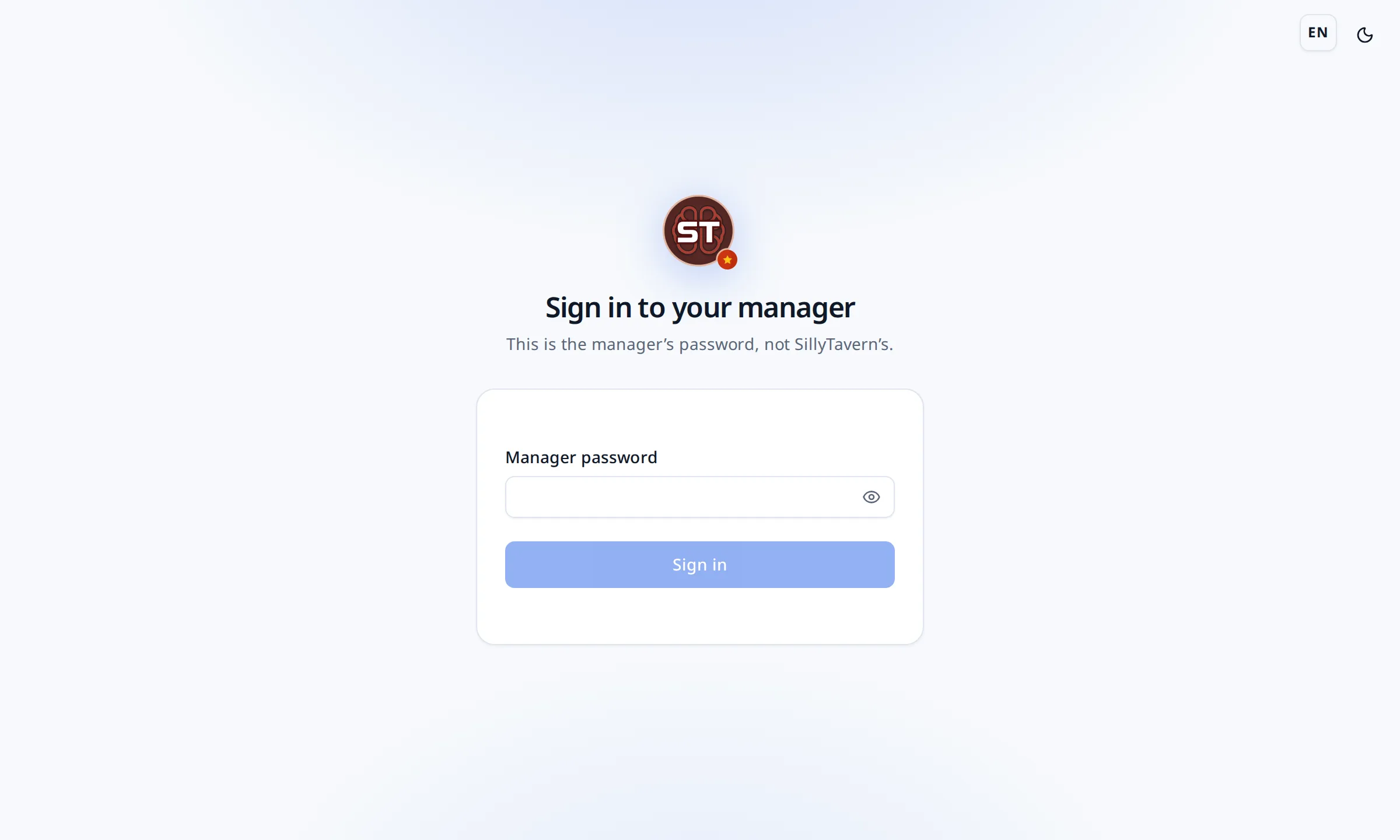
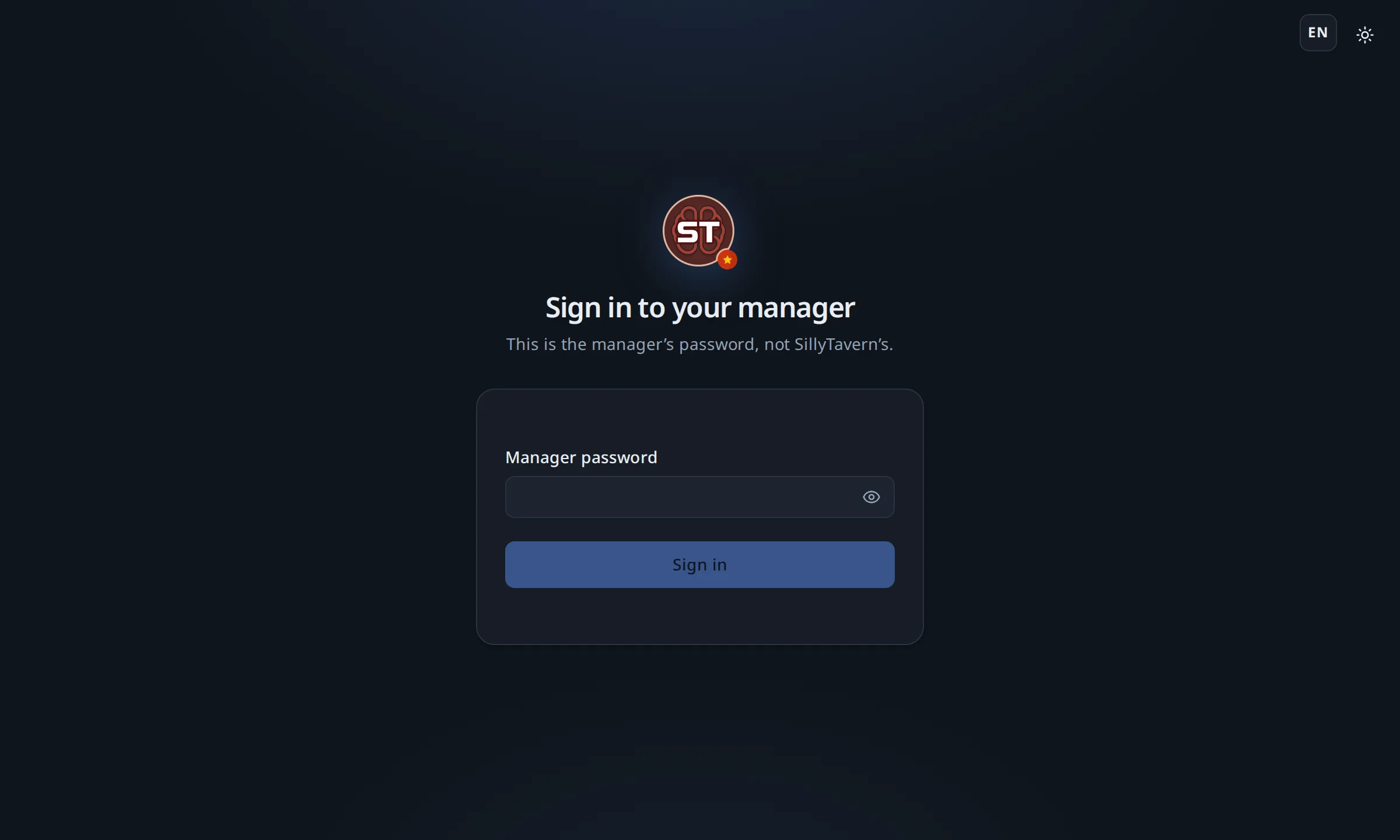
The manager password and the SillyTavern passcode are two different things. The manager password opens the admin panel. The passcode opens SillyTavern to other devices, and changing it signs out every device already in.
A first install downloads a few hundred megabytes of dependencies and takes a few minutes on a laptop, longer on a phone. The live log says what it is doing; nothing is stuck just because it is quiet for thirty seconds during npm ci.
Running it day to day
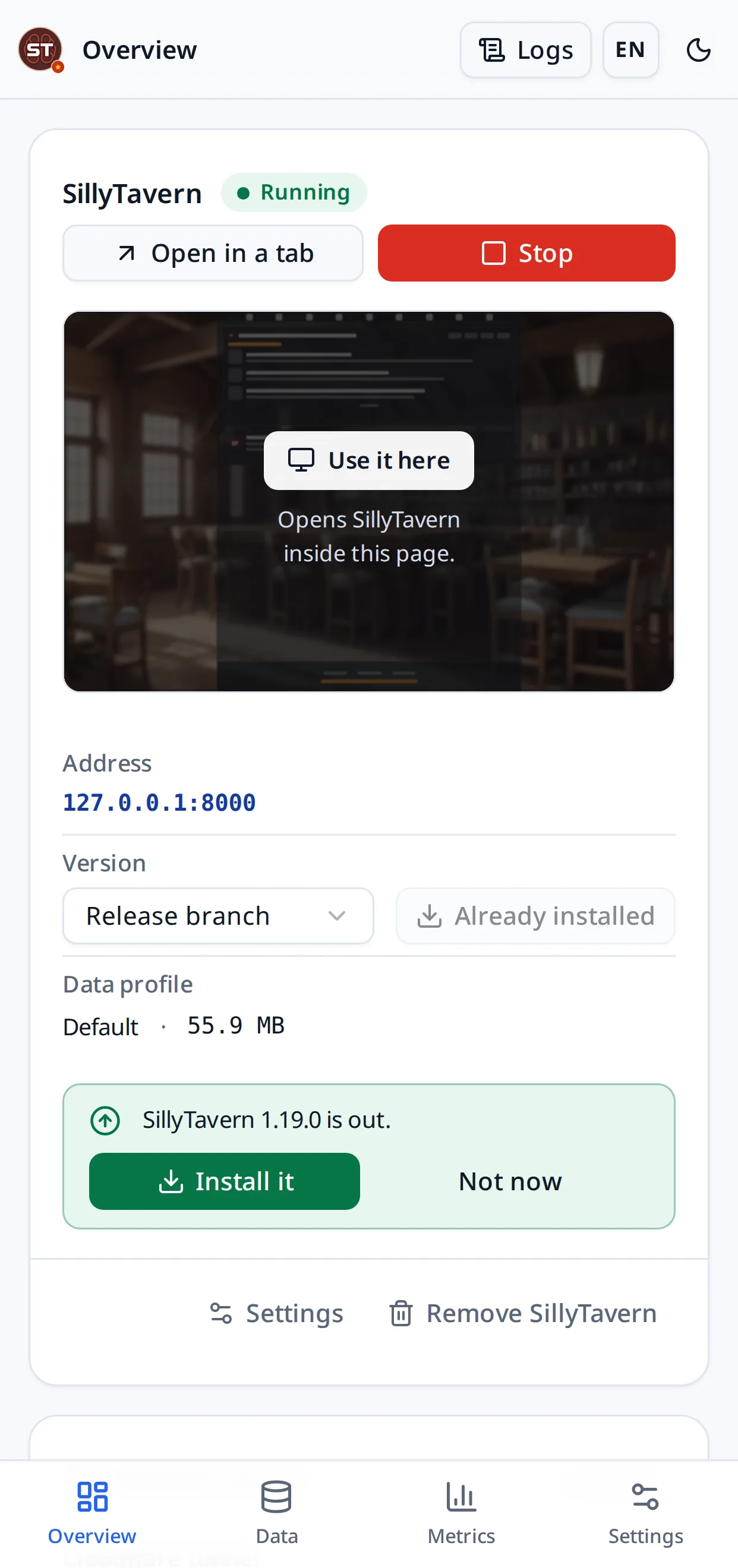
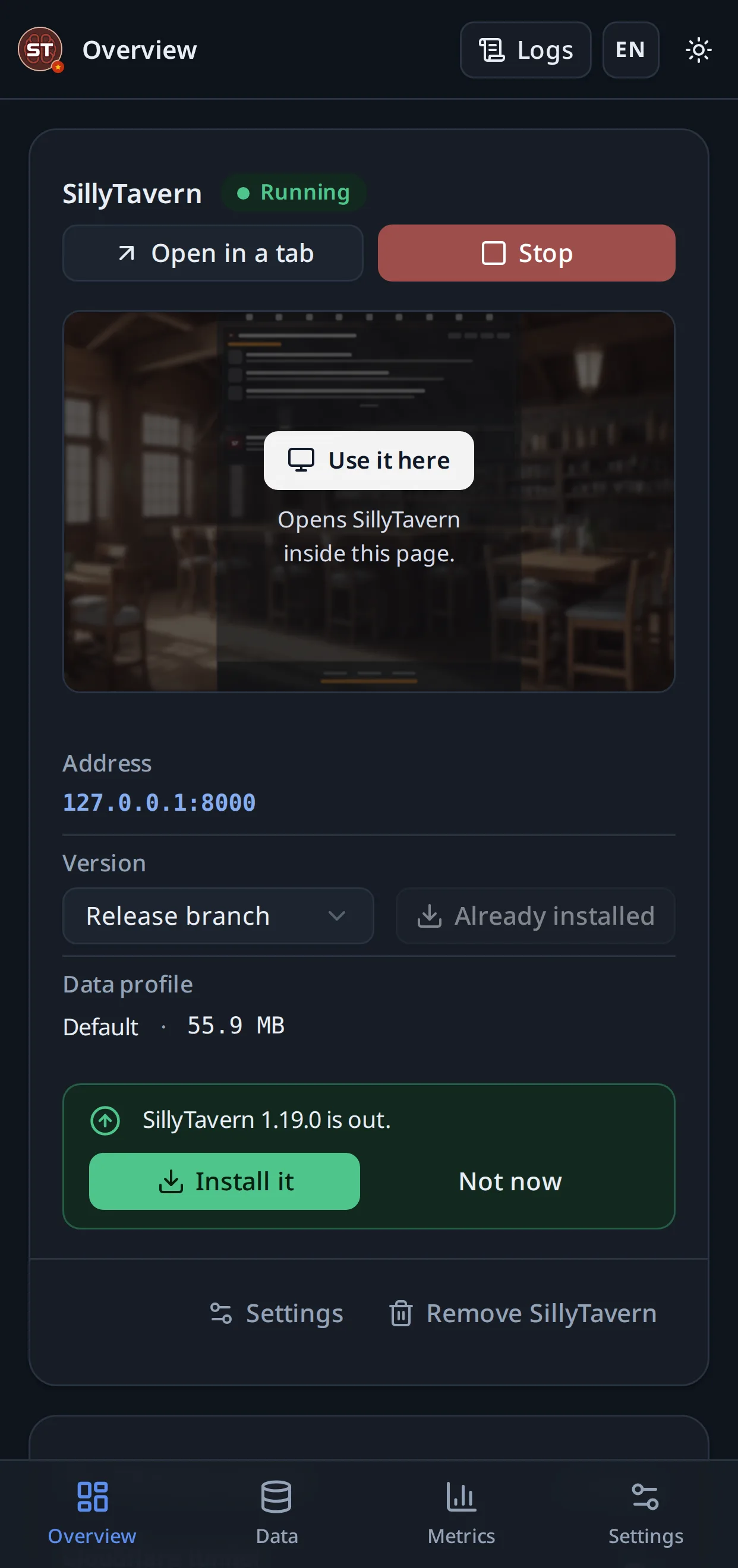
The overview page is the whole of normal use: Start, Stop, and a link that opens SillyTavern. It also shows the installed version, whether a newer release exists, how much space your data takes and what the machine is doing.
SillyTavern can be opened in a panel of its own inside the manager, which is what a phone wants, or in a new tab, which is what a desktop usually wants.
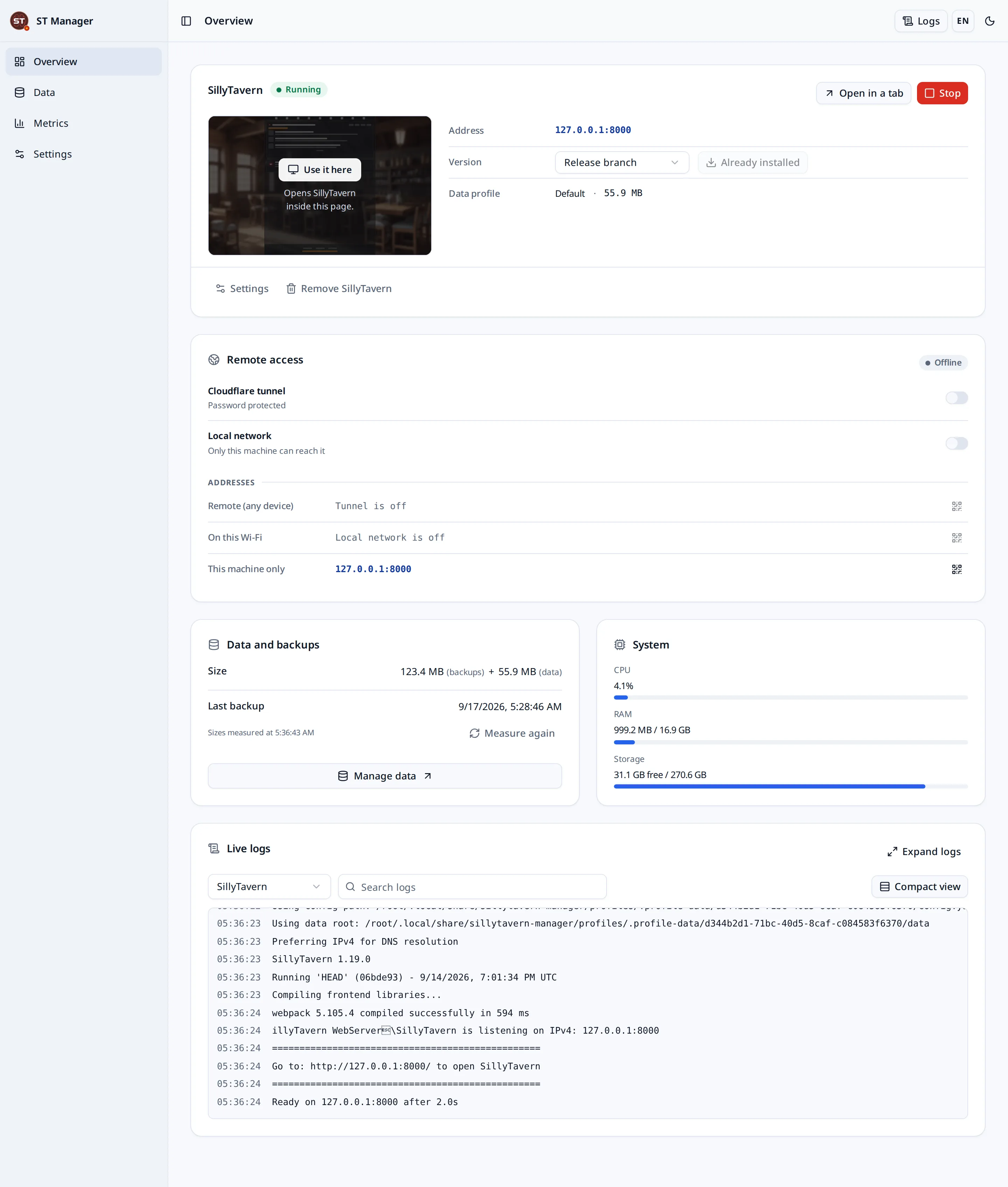
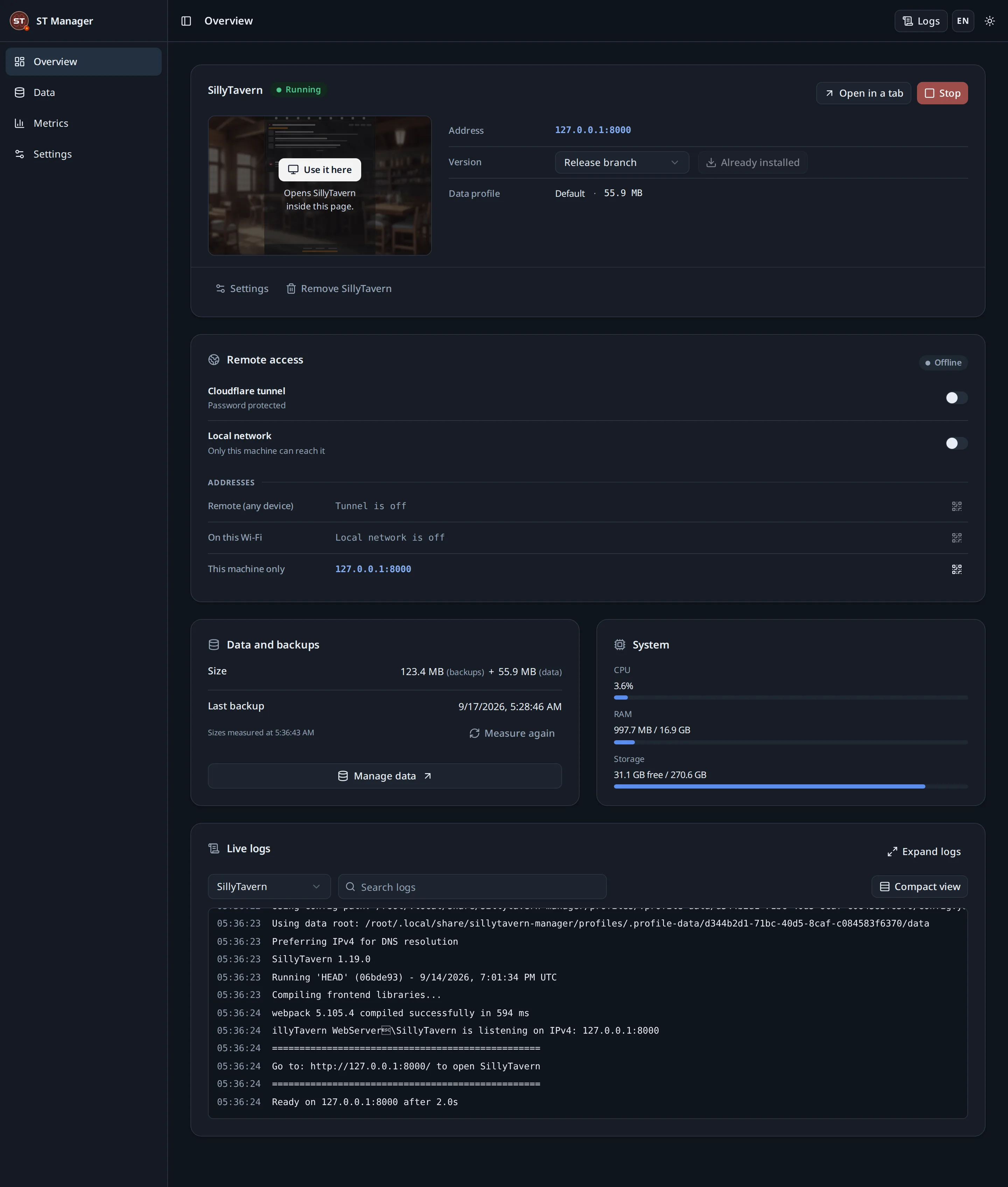
The log feed carries five sources in one searchable list — the manager, SillyTavern, the installer, backups and the tunnel. When something fails, the reason is in there, and the panel translates the manager’s own lines into your language while leaving SillyTavern’s, npm’s and git’s output exactly as those programs wrote it.
Closing the browser does not stop anything. The manager keeps running until you stop it in its own window, or stop the service.
Backups and restores
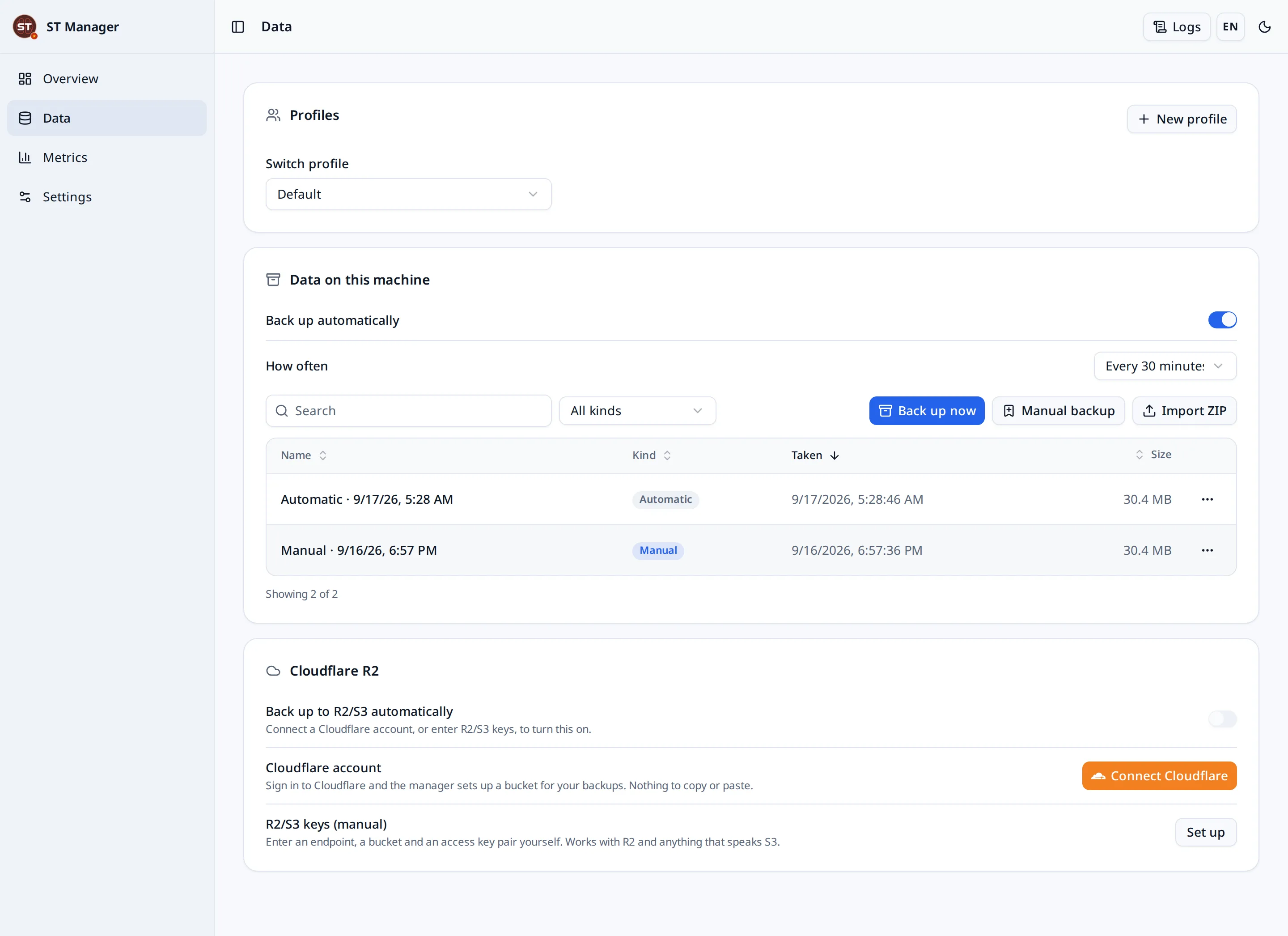
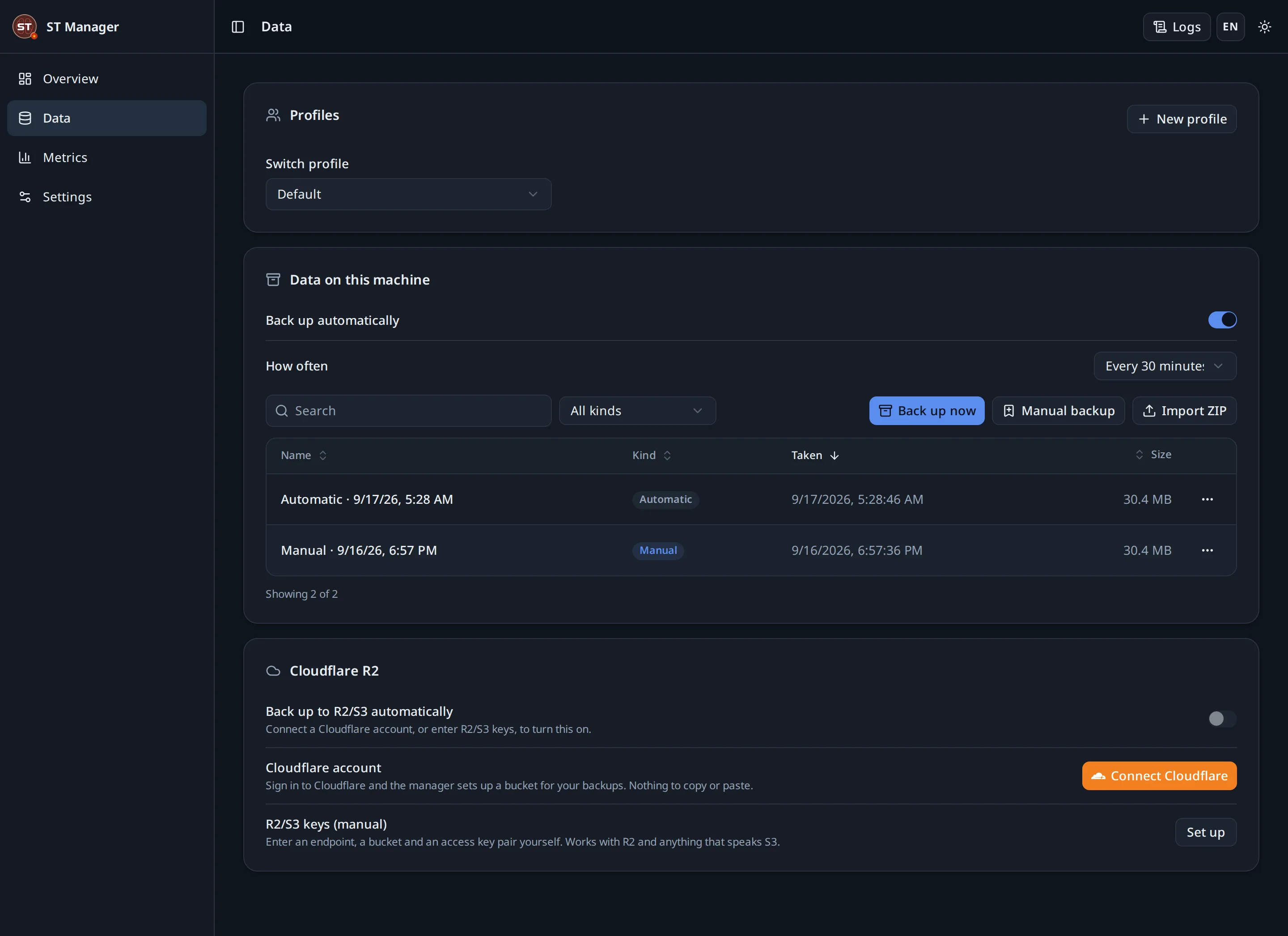
The Data page holds profiles, local archives and, if you connect it, off-site recovery points in your own Cloudflare account.
#Local archives
Back up now writes a ZIP that SillyTavern’s own import understands. By default it leaves out secrets.json, thumbnails, vectors, generated backups, .git, node_modules and operating-system clutter, which is why an archive is far smaller than the data folder. Including secrets is a separate, deliberate choice with a warning attached.
A schedule can make one daily or weekly and keep the last few. Archives are ordinary files: copy them anywhere.
#Restoring
- Pick an archive — one the manager made, one from Cloudflare R2, or a ZIP you upload.
- Read the preview. It lists what is in the archive before anything is written.
- Choose Replace (the default: the profile becomes the archive) or Merge (files in the archive overwrite their counterparts, everything else is left).
- Confirm. A safety snapshot of the current state is taken first, automatically.
Restoring replaces data. The safety snapshot means a mistake is recoverable, but choosing the right archive is still yours to get right.
#Cloudflare R2
On the Data page, Connect Cloudflare is the whole of the setup. Sign in, choose the account, allow the permissions, and the manager finds or creates a bucket named sillytavern-manager-backup in your account and starts keeping recovery points in it. There are no keys to create or paste.
Two of the permissions are optional and worth allowing:
- Workers. The manager deploys a small Worker, also called
sillytavern-manager-backup, that carries backup data to the bucket. It is much faster and does not spend your Cloudflare API rate limit. Without it, backups go through Cloudflare’s API and a first one can take a long time. - Account Analytics. The panel can then show storage and Class A/B operations as Cloudflare counts them, for the bucket and for the account against the free tier. These are usage figures, not your bill.
A new machine that signs in to the same account finds the same bucket, so the recovery points already in it can be restored onto it.
Disconnect removes this installation’s Worker key and revokes the sign-in. The bucket and everything in it stay yours. You can also revoke access yourself in your Cloudflare profile, under Manage OAuth authorizations.
Only the refresh token is stored, in a file readable by your user alone. Access tokens and Worker keys are short-lived and live in memory. Backups go from your machine to your bucket; no server of this project is on that path.
R2 has a free tier, and beyond it Cloudflare bills you. Large or frequent backups cost storage and operations. Set your own limits and alerts in the Cloudflare dashboard — the charge is yours, whatever caused it.
Prefer not to sign in? Choose R2/S3 keys (manual) and enter the endpoint, bucket and key pair from the R2 page of the Cloudflare dashboard. Any S3-compatible storage works the same way.
Data profiles
A profile is a complete, separate SillyTavern data set: its own characters, chats, settings and backups. Switching profiles swaps what SillyTavern sees.
They are useful for keeping work and play apart, for trying an extension without risking a real data set, and for a second person on the same machine. Creating one is instant; switching takes a safety snapshot first.
Usage figures
The Usage page counts requests, tokens, cache hits and latency, broken down by day, provider and model. The numbers come from SillyTavern’s own traffic as it passes through the manager, so they cover every provider without any of them being configured here.
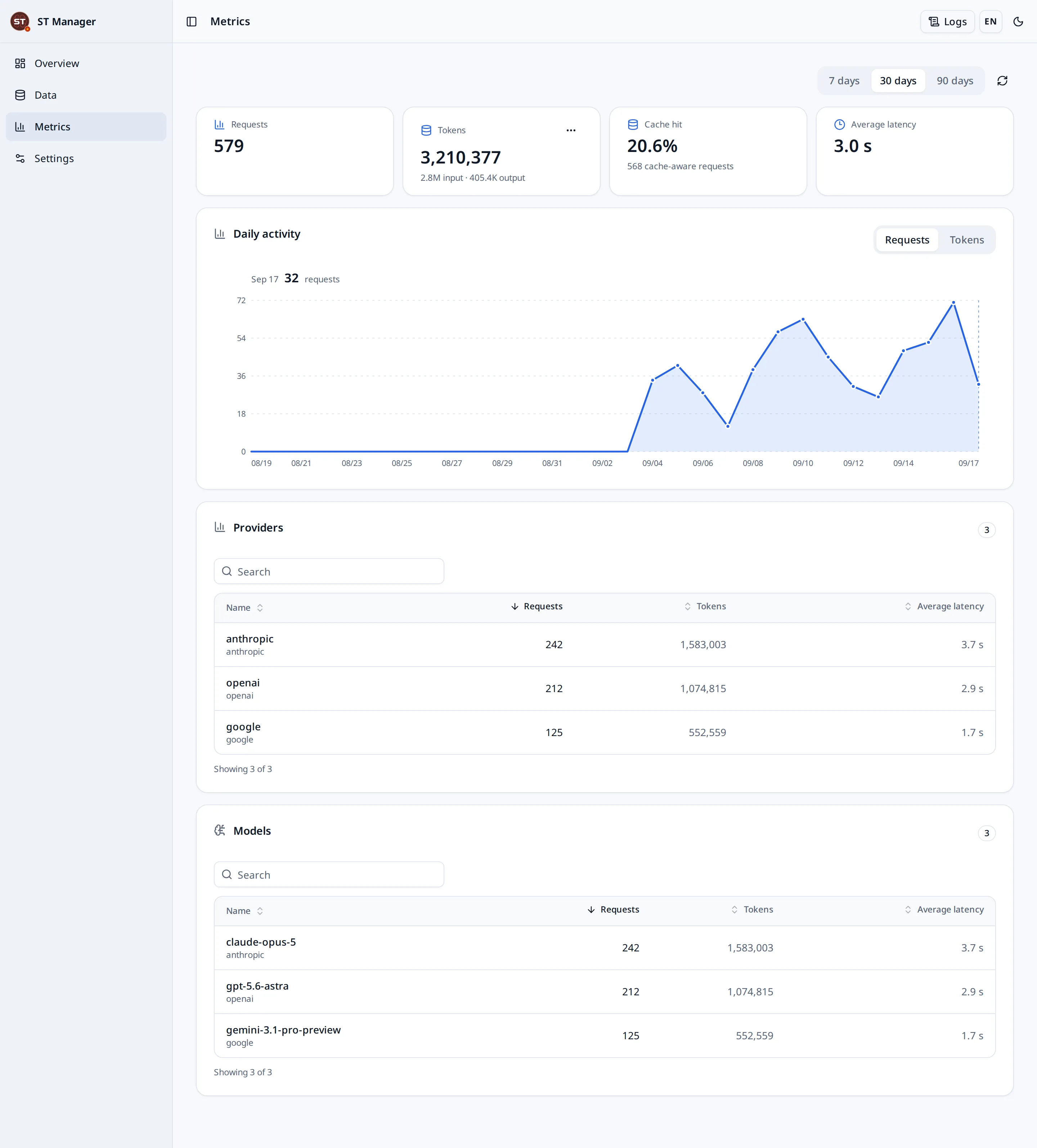
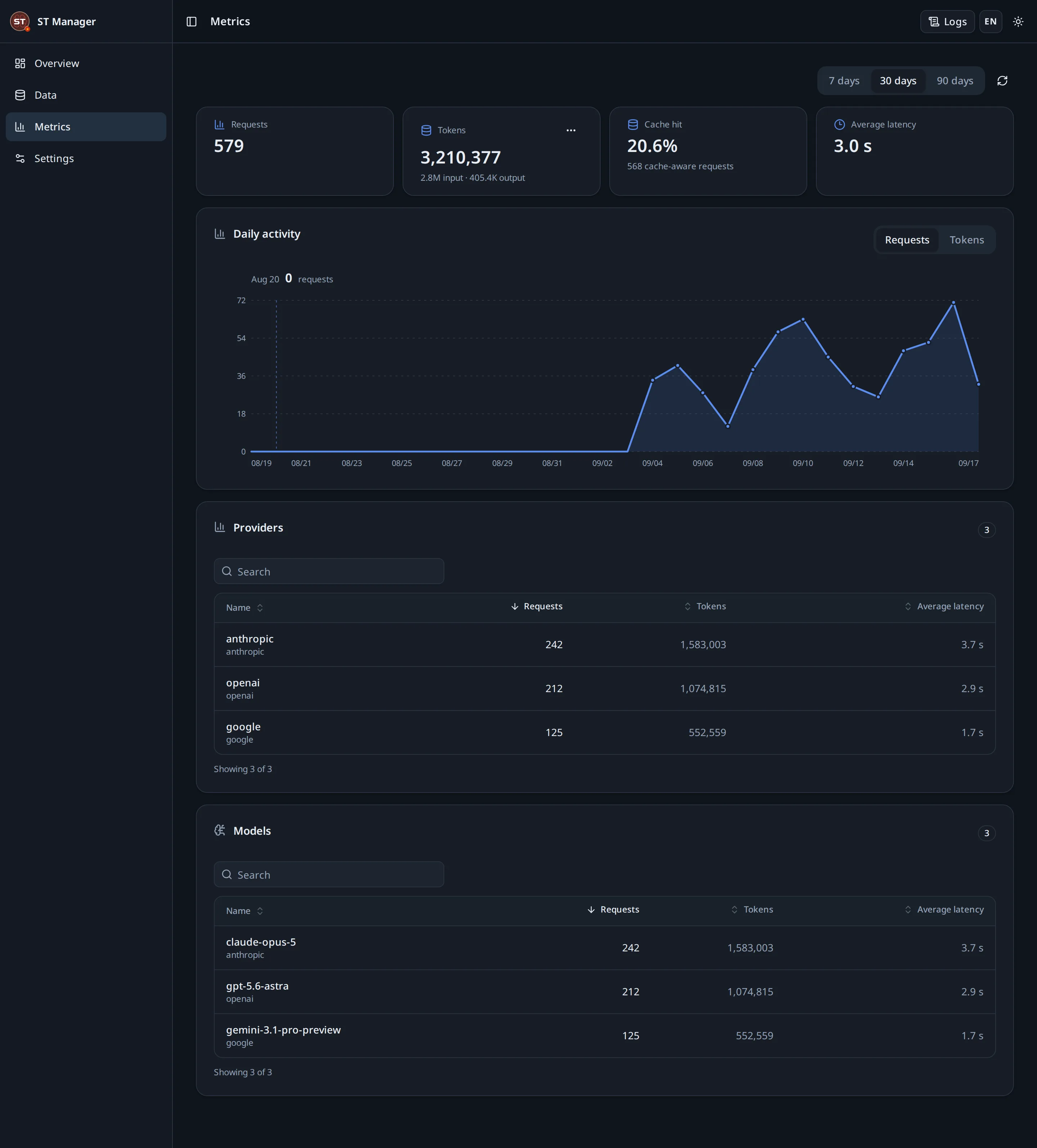
These figures never leave the machine. They are read from a local file; what the project receives is the far smaller summary described in the Privacy Notice.
Settings
The Settings page edits SillyTavern’s own config.yaml through switches, and can also open the file directly for anything the switches do not cover. Saving stops SillyTavern, writes the file and starts it again.
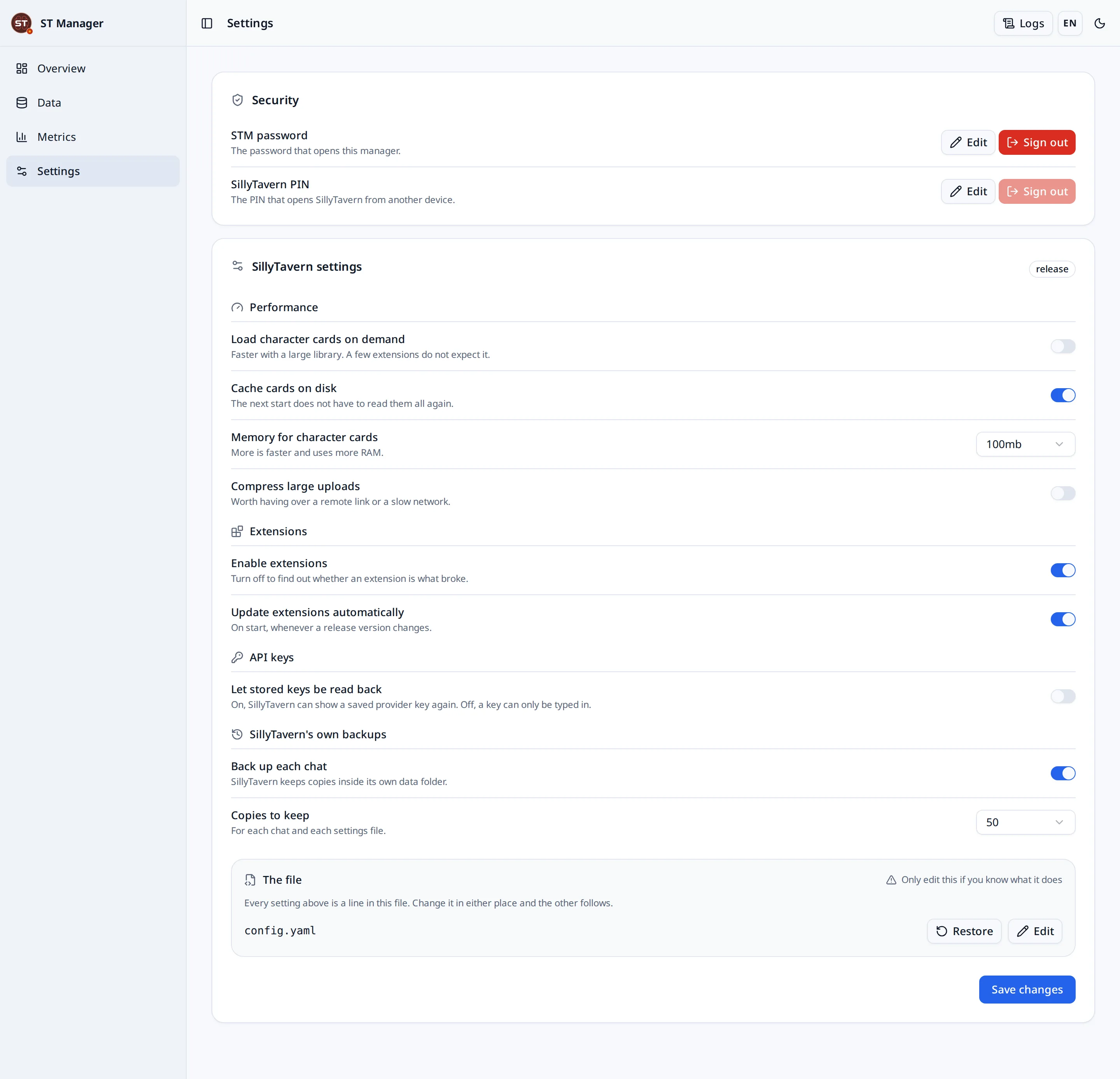
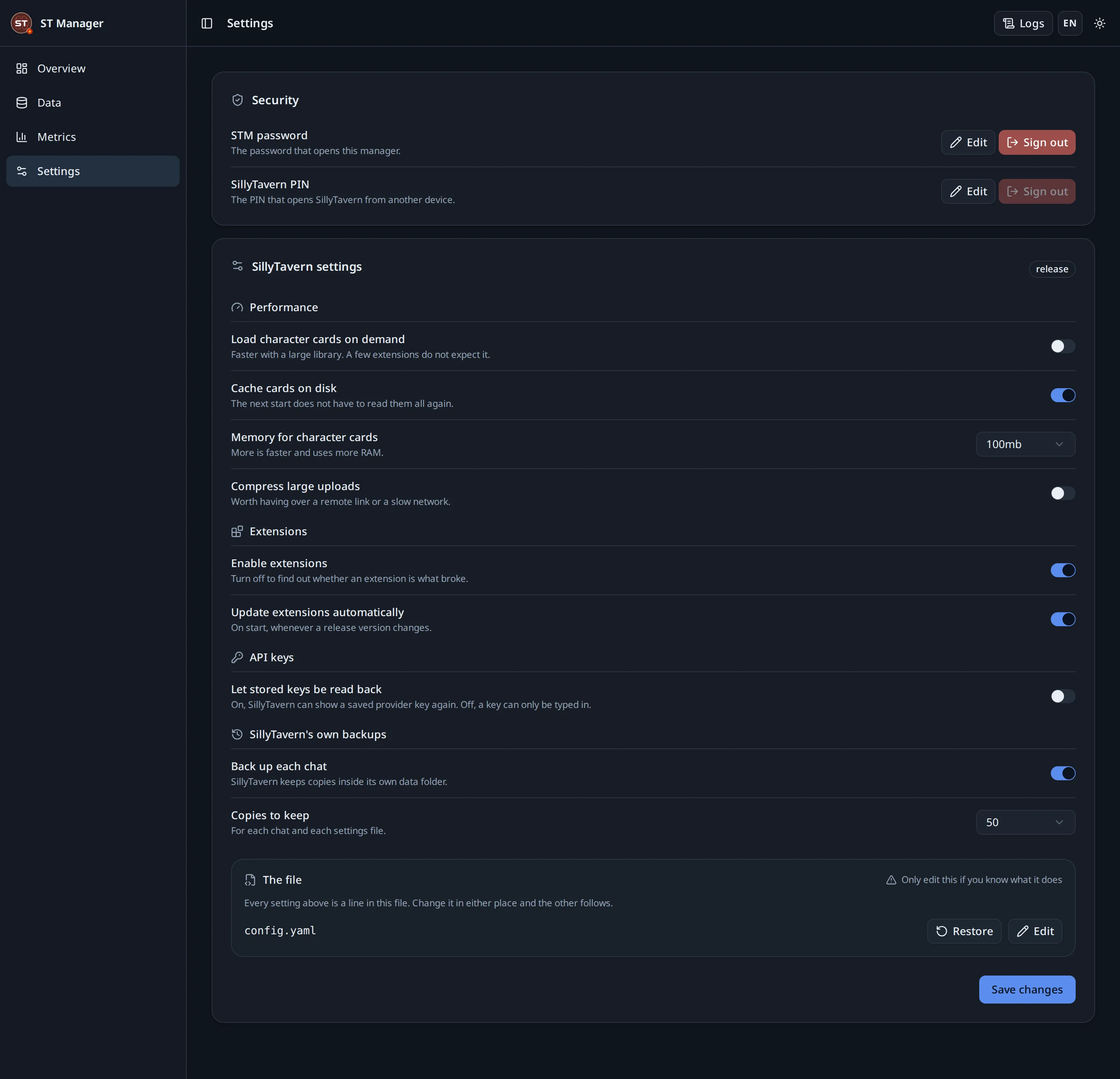
| Setting | What it changes |
|---|---|
| Lazy-load characters | A large character list loads on demand rather than all at once |
| Disk cache and memory cache | How much SillyTavern keeps ready; the memory figure is a ceiling, not a reservation |
| Request compression | Smaller responses over a tunnel or a slow link |
| Extensions and auto-update | Whether extensions load, and whether they update themselves |
| Allow key exposure | Whether SillyTavern will show stored API keys in its own interface. Off unless you need it |
| Chat backups | SillyTavern’s own per-chat backups, and how many to keep |
Editing the file by hand is a different act from flipping a switch. An invalid file stops SillyTavern from starting; the panel checks the YAML parses before it writes, but it cannot know whether a value makes sense.
Updating
| Platform | How to update the manager |
|---|---|
| Windows | Stop the manager, extract the new ZIP into a new folder, run the new executable. Keep the old folder until you are sure. |
| Termux, macOS, Linux | Stop the process, then git pull --ff-only, npm ci, and start the launcher again. |
| Docker | Rebuild the image and start a new container against the same volume. |
| npm | npm install --global sillytavern-manager@latest, or just run npx sillytavern-manager again. |
git pull --ff-only
npm ci
SillyTavern itself updates from the panel: pick a newer version and press Install. Your data is copied to safety before the version is switched, and the manager tells you when a release newer than the installed one exists.
The data directory is never inside the application directory, on any platform. Replacing the application leaves profiles, backups, logs, metrics and settings exactly where they were.
Environment variables
Everything can be set in the panel. These are for unattended installs and hosted platforms; they are read at start from the process environment or a .env file, and anything set here is shown in the panel and cannot be changed there.
| Variable | What it does |
|---|---|
STM_ADMIN_PASSWORD |
Creates the administrator password at the first start, so a headless install needs no browser |
STM_HOST |
What the manager binds to. Defaults to loopback; set 0.0.0.0 only behind other access control |
STM_DATA_DIR |
Where profiles, backups, logs and metrics are kept, instead of the platform default |
STM_ACCESS_PORT |
The access gateway’s port, instead of 8001 |
STM_OPEN_BROWSER |
0 stops the manager opening a browser at start |
STM_LOCAL_BACKUPS |
How many local archives to keep |
STM_CLOUDFLARED_PATH |
A cloudflared binary to use instead of the one the manager would find |
STM_R2_ENDPOINT · STM_R2_BUCKET |
R2 or S3 endpoint and bucket, for keys supplied rather than signed in |
STM_R2_ACCESS_KEY_ID · STM_R2_SECRET_ACCESS_KEY |
The key pair. With all four set, R2 backups start switched on |
STM_CLOUDFLARE_OAUTH_CLIENT_ID |
An OAuth client registered in your own Cloudflare account; empty turns signing in off |
STM_TELEMETRY_ENDPOINT |
Where usage summaries go. Set it empty to send nothing at all |
# .env, next to the repository or the launcher
STM_TELEMETRY_ENDPOINT=
When something goes wrong
The live log is the first place to look, and usually the last. It carries the manager, SillyTavern, the installer, backups and the tunnel; the reason is nearly always written there in the program’s own words.
| What you see | What it usually is |
|---|---|
| The panel does not open at all | Something else holds port 7860, or the manager stopped. Check the console window, then the port. |
Install fails during npm ci |
No internet, a proxy in the way, or a full disk. The log carries npm’s own error. |
| Ready never arrives | SillyTavern started but did not answer on 8000. Read the SillyTavern lines in the log; a bad config.yaml is the usual cause. |
| The tunnel will not start | cloudflared is missing or Cloudflare is unreachable. Local access keeps working regardless. |
| Another device cannot connect | The gateway is off, no passcode is set, or the two devices are not on the same network. |
| A passcode stopped working | Five wrong tries lock the gateway. Wait, or change the passcode from the panel. |
| SillyTavern will not start after an edit | Restore defaults on the Settings page, or fix the YAML in the editor there. |
# Linux, macOS and Termux
ss -ltnp | grep -E ':(7860|8000|8001)' || lsof -i :7860Get-NetTCPConnection -LocalPort 7860 -State Listen | Select-Object OwningProcessIf none of that helps, open an issue at github.com/locmaymo/stm/issues with the platform, the version from the About panel in Settings, and the relevant log lines. Do not paste API keys or tunnel addresses.
Privacy, briefly
There is no account and no cloud. Chats, characters, prompts, settings, backups and API keys stay on machines you control, and the project holds no copy of any of it.
The manager sends one thing: a small allowlisted usage summary — platform, version, and per request the provider, model, endpoint hostname, token counts, status and duration. Never prompts, chats, responses, keys, file names, paths, IP addresses or query strings.
The full list, and the one line that switches it off, are in the Privacy Notice. The Terms of Use and the Disclaimer say what the project does and does not take responsibility for.
The source is at github.com/locmaymo/stm, under the AGPL-3.0. You can read every line of it, including the part that decides what is sent.